





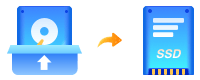
Step 1. Choose the source disk
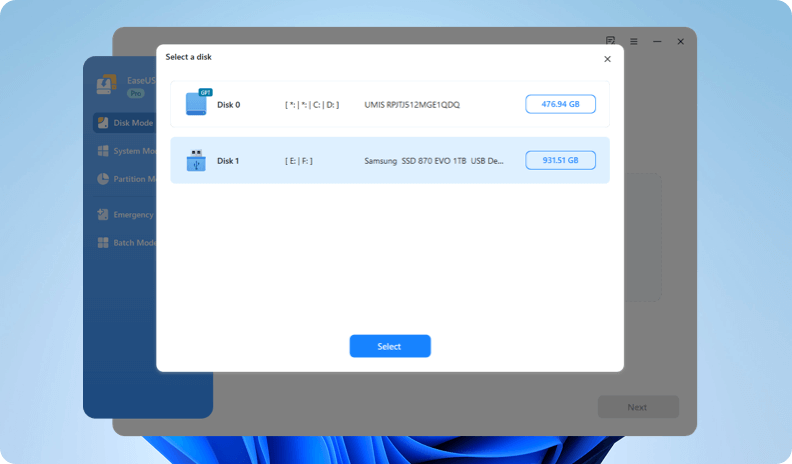
Launch EaseUS Disk Copy, select the source disk under the Disk Mode.
Data Recovery Wizard for Windows
Recover lost data from HDD, SSD, SD cards, USB drives on Windows PC.
Recover lost files from Mac SSD, Time Machine backups, memory cards, Trash, and external storage devices.
Recover Lost iPhone/Android Data – Photos, Messages, Contacts & More in 3 Clicks.
Windows partition manager: create, resize, clone partitions and upgrade HDDs/SSDs safely.
Windows Backup Freeware - One-click system, disk, and file backup with reliable recovery for peace of mind.
PC data transfer software: transfer data, apps, user account and personal files to new PCs and disks.
Remove vocals from songs and separate vocal and instrumental tracks from audio or video with AI.
Capture any area of your screen with customizable settings and record video/audio/webcam.
Channel Partnerships
Affiliate Earn commissions when you drive sales through your affiliate links. Resellers Sell EaseUS products as a distributor. Creators & Influencers Partner with us on YouTube, TikTok, Twitch to earn commissions. OEM & Outsourcing Service Put your brand on EaseUS software, or get custom solutions.Self-Service
Manage your products, licenses, and subscriptions in one place. Find guides and resources for quick self-service.
Live Chat Support
Get real-time answers from our experts.
Premium Human Services
Human-led solutions for complex system & data emergencies.
Download & Enjoy Limited Time Deal
Disk Copy
Disk Copy for
Cloning Scenarios
Local Disk Copy
Clone hard drive offline on computer.
Network Disk Copy
Clone one hard drive to another via network.
Batch Disk Copy
Clone one hard drive to multiple devices simultaneously over your existing network.
Cloning Features
 One-Click Disk Clone, Smooth Upgrade with Guaranteed Boot




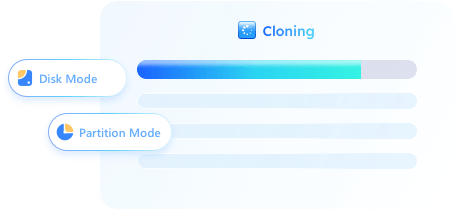
One-click Disk/Partition Clone
Using EaseUS Disk Copy, you can quickly duplicate entire HDD/SSD or a partition with a single click, ensuring effortless data transfer without reinstalling.
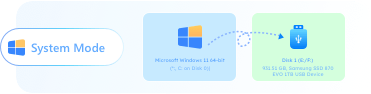
Seamless OS Migration Mode
Smoothly and safely move your operating system to a new drive without reinstalling or reactivating, keeping all files, settings, and apps intact.
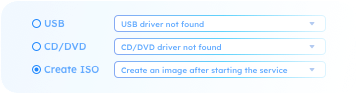
Create WinPE Bootable Media
EaseUS Disk Copy can help you build a bootable USB/disk even when your system won't boot into it, ensuring a smooth disk clone or data migration.
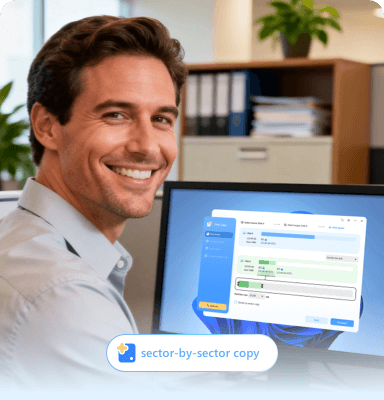
Sector-Level Copy Technology
Clone data bit by bit with precision, automatically skipping bad sectors to ensure an error-free copy process and safe data protection.
Upgrade Hard Drive Without Losing Data
To resolve a low disk space issue on a computer, nothing is more helpful than replacing the current hard drive with a newer and bigger HDD/SSD. Cloning a disk ensures a smooth upgrade from one hard drive to another as it copies files, programs and OS as they were.
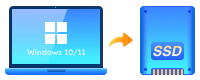
Migrate Windows 10/11 Without Reinstalling
Reinstalling Windows 10/11 from scratch will take a long time and may get stuck during the process. EaseUS SSD cloning software can easily migrate Windows OS installation from HDD to SSD, or clone SSD to M.2 SSD or SATA/M.2/NVMe types.
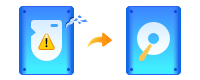
Replace Failing Hard Drive for Complete Data Recovery
Losing access to data on a failing hard drive? The expert-approved way to recover data from a failing or even dead hard drive is to create a disk image of the bad one to a new healthy drive with the help of the best disk cloning software.
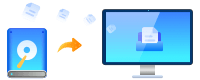
Clone An Old HDD/SSD to A New Computer
When you build a new PC, it's a great idea to clone old hard drive to new computer, including OS, all data, files and applications, and boot your new computer from the cloned hard drive to avoid a new round of reinstallation.
Transfer Data from One Drive to Another in Your Pocket
Experience the ultimate portability and convenience. With EaseUS Disk Copy, you can transfer all data from one drive to another without losing data or reinstalling the Windows OS. It's the fastest, most secure way to upgrade your storage or create a backup.
Create A Complete Backup for Instant Restore
You can clone your hard drive to serve as a backup. If the original hard drive fails, you can swap it out with the backup drive immediately. Without the time-consuming data restore process, everything remains there, and all looks familiar on the original drive.
ALL Disk Brands
Supports all major disk brands used in consumer, business, and enterprise environments, like Samsung, WD, Toshiba, etc.








ALL Disk Types & Interfaces
EaseUS Disk Copy is designed to handle a wide variety of disk types, from traditional spinning hard drives to ultra-fast NVMe SSDs.

SATA HDD

SAS HDD

SATA SSD

NVMe SSD

PCIe SSD

PATA HDD/SSD

USB Flash Drive

SD Card

SSHD SATA
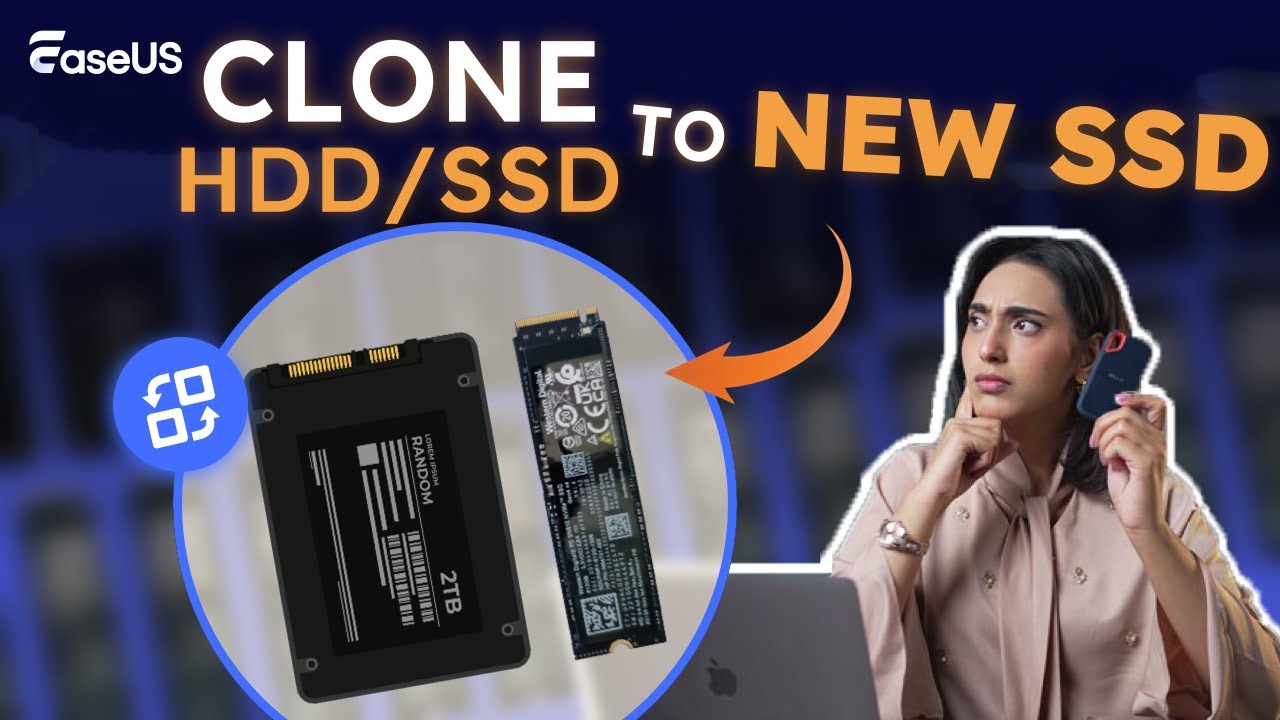
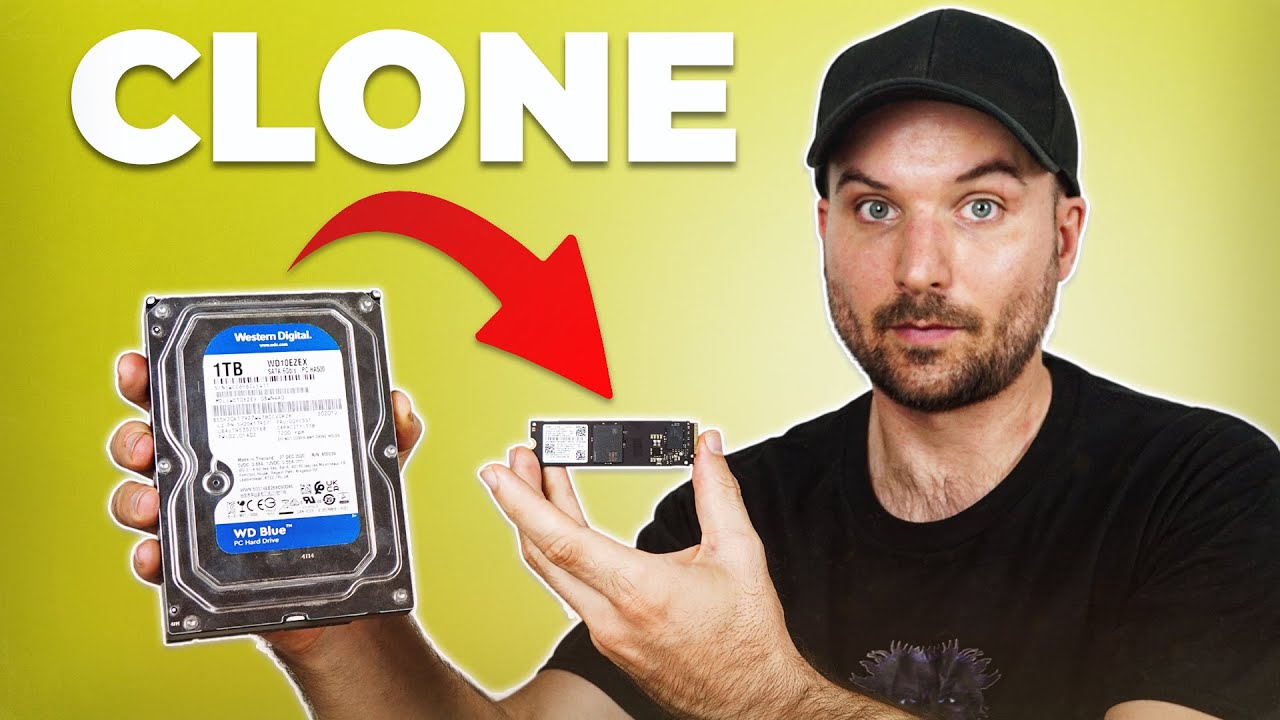
Skip the stress! Professional-approved video tips show you the fastest, easiest way to clone your disk to a new one with EaseUS hard drive cloning software. Watch now and upgrade your drive in minutes.
Launch EaseUS Disk Copy, select the source disk under the Disk Mode.
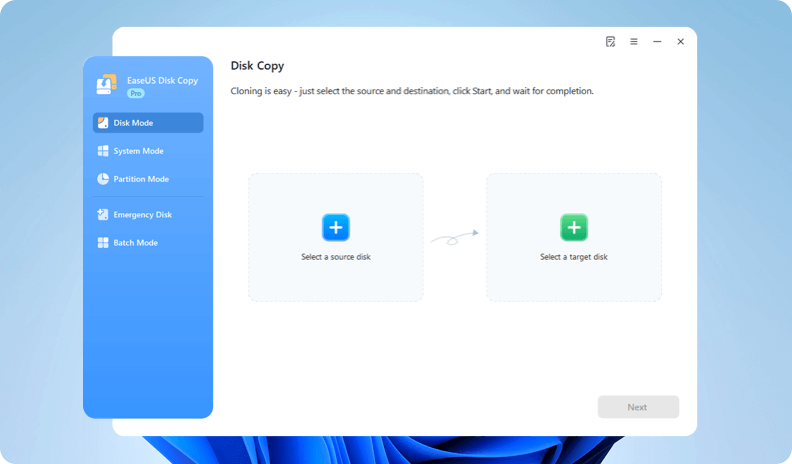
Choose the target disk, and ensure it has larger space than the source one.
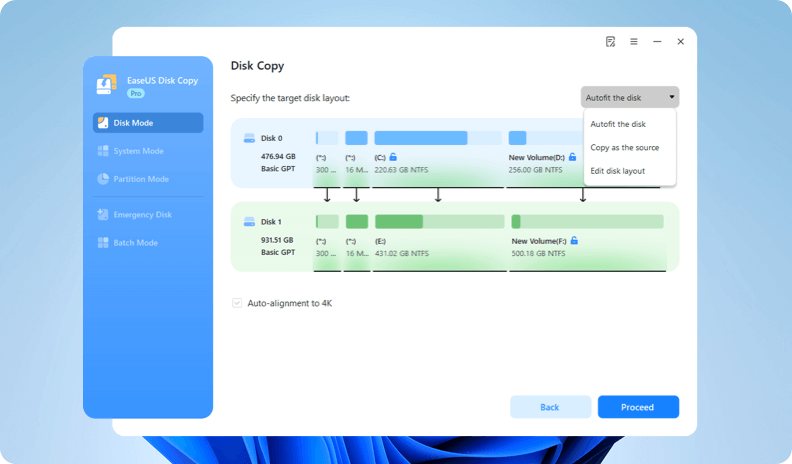
You can choose to 'autofit the disk', 'copy as the source', or 'edit disk layout' as needed. Then click Proceed to start cloning.
Multiple System Installation
This version is designed for enterprise and service providers. It can minimize business expenses as it allows technicians to operate multiple computers with one license.
Professional Tech Support
EaseUS offers access to 24/7 professional technical support via live chat and instant email. Our dedicated support professional provides top priority service for any issue in the performance of our product.
Anywhere and Anytime
Whether your operate disk cloning in multiple systems on-premises or provide service at remote locations. EaseUS Disk Copy Technician can perfectly adapt to your need.
Features
Pro
Technician
30-day money
back guarantee
100% Secure
Secure always comes first
Free
tech support
Windows 11/10/8/7
Windows Server 2008/2012/2016/2019/2022
FAT12
FAT16
FAT32
NTFS
Check Tech Specification Added backup and restore functionality (including system-level backup and restore).
Added support for cloning image or virtual disk files (such as VHD/VHDX).
Added offline system cloning capability.
EaseUS Founded
Disk Clone Users
Loyal Partners
Countries Are Covered
EaseUS Disk Copy creates sector by sector clones of partitions or hard disks, independent of operating system, file systems or partition scheme. It's a versatile tool for both the novice and experienced user.

How long does it take to clone a 1TB hard drive?
The cloning time depends on the type of drives and the interface used. Cloning from an HDD to another HDD is slower, usually taking several hours, while SSD-to-SSD cloning is much faster. The amount of used data also affects speed. With modern NVMe SSDs, a 1TB drive can often be cloned in under an hour.
How to clone HDD to SSD without losing data?
To clone HDD to SSD safely, it's important to copy all partitions, including the system, applications, and personal files. Sector-level cloning ensures no data is skipped or lost. During the process, partitions can be resized to fit the SSD's capacity. Once completed, the SSD becomes bootable with all original content intact, making it an effective way to upgrade storage without reinstalling the operating system or programs.
How to upgrade to a larger SSD while keeping Windows 10/11?
Upgrading to a larger SSD requires migrating the system partition along with applications and personal files. The process involves copying the OS and automatically adjusting partitions to match the new drive size. After cloning, the larger SSD can boot normally, preserving the existing Windows installation and avoiding the need to reinstall programs or reconfigure settings.
Can I clone a disk with bad sectors?
Yes, disks with bad sectors can be cloned by skipping damaged areas while copying healthy data. This ensures the cloning process completes without being interrupted by corrupted sections. Sector-by-sector cloning reads valid sectors and ignores problematic ones, minimizing the risk of data loss.
Is it possible to migrate Windows to a new PC with different hardware?
Migrating Windows to a new PC with different hardware is feasible by adjusting system configurations during the transfer. Drivers may be updated or replaced to match the new motherboard or CPU. The process preserves installed programs, personal files, and system settings, allowing the OS to boot successfully on the new machine. This method enables hardware upgrades or full system replacements without requiring a fresh Windows installation.
Can I clone an NVMe SSD to another NVMe SSD?
Cloning from one NVMe SSD to another is fully supported and typically offers very fast transfer speeds. The process to clone nvme to nvme involves copying all partitions, including the OS, applications, and personal files. Partition sizes can be adjusted automatically to fit the destination drive. Once the clone is complete, the new NVMe SSD can boot immediately with all data intact, making it an efficient way to upgrade or replace high-speed storage.
Join millions of satisfied users who trust EaseUS for their disk management needs
Free DownloadCopyright © EaseUS. All rights reserved.



 Operating System Supported
 Files Systems Supported
 7.0 Versions Features

